
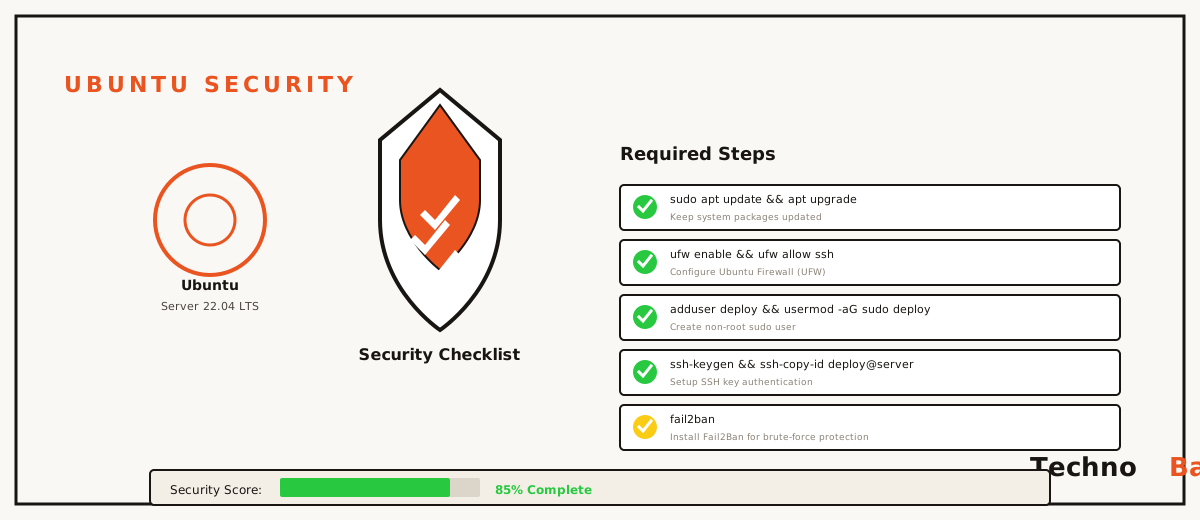
The IP your new VPS gets handed belonged to somebody else last week, and the scanners that were hammering that address never stopped to check whether ownership changed. So a fresh Ubuntu box in a Mumbai or Bangalore datacenter starts catching automated attacks within minutes of booting, before you’ve even finished reading the welcome email. I learned this the dumb way. A while back I left a throwaway test VPS up over a weekend with password SSH still on, figuring nobody bothers with a box that hosts nothing. By Monday the auth log had logged something north of nine thousand failed logins, IPs scattered across a dozen countries. Nothing got in. But it cured me of ever treating a new machine casually again. What follows is the exact list I run on every fresh server, in order, start to finish in about 45 minutes.
the checklist at a glance
| # | Task | Time | Blocks |
|---|---|---|---|
| 1 | Updates + unattended-upgrades | 10 min | Known CVE exploits |
| 2 | Sudo user, key-only SSH, no root login | 10 min | Password brute force |
| 3 | UFW default-deny firewall | 5 min | Exposed services |
| 4 | Fail2ban on SSH | 5 min | Slow distributed guessing |
| 5 | Swap + basic monitoring | 5 min | OOM crashes hiding incidents |
| 6 | Backups and snapshot schedule | 10 min | Ransomware-style total loss |
Everything below assumes Ubuntu 24.04 LTS. Haven’t built the server yet? Go through my VPS beginner guide first and circle back here before you install anything on top.
1. patch everything, then make patching automatic
Provider images tend to be baked weeks before you ever boot them, which means you inherit a backlog of known holes the moment the machine comes up. First commands on any new box:
sudo apt update && sudo apt upgrade -y
sudo apt install unattended-upgrades -y
sudo dpkg-reconfigure --priority=low unattended-upgrades
Pick Yes at the prompt. From then on unattended-upgrades pulls security patches every day without you lifting a finger. On a server you maybe glance at twice a month, that one step probably stops more compromises than everything else here combined, because most real breaches I’ve seen aren’t clever zero-days at all. They’re vulnerabilities that got patched months earlier and nobody applied the fix.
2. lock down SSH properly
SSH is the front door. Password authentication is that door with a lock anyone can guess, given enough tries, and the scanners have nothing but time. So create a normal user, hand it your key, then switch off everything risky.
sudo adduser anurag
sudo usermod -aG sudo anurag
sudo mkdir -p /home/anurag/.ssh
sudo cp ~/.ssh/authorized_keys /home/anurag/.ssh/
sudo chown -R anurag:anurag /home/anurag/.ssh
sudo chmod 700 /home/anurag/.ssh && sudo chmod 600 /home/anurag/.ssh/authorized_keys
Now open /etc/ssh/sshd_config and set these three lines:
PermitRootLogin no
PasswordAuthentication no
MaxAuthTries 3
On 24.04 there’s a catch that bites people constantly: check /etc/ssh/sshd_config.d/ for cloud-init drop-in files that re-enable PasswordAuthentication. A lot of providers leave one there, and the drop-in quietly overrides whatever you just wrote in the main config. Restart with sudo systemctl restart ssh, and before you close your root session, prove you can log in as the new user from a second terminal. One thing specific to here: if you’re connecting from a Jio or Airtel line with a dynamic IP, don’t bother whitelisting your home address in the firewall. It rotates, it locks you out, and you’ll spend an evening on the provider console getting back in. The key is your protection. Not the IP filter.
Moving SSH off 22 to something like 2222 is optional and mostly cosmetic. It quiets the logs a lot, sure, but it buys you basically no real security, since scanners sweep non-standard ports in seconds anyway. I do it for one reason only: a readable auth.log.
3. firewall: deny by default
UFW ships with Ubuntu and covers what most servers actually need. The rule is dead simple. Everything stays closed unless a service has a real reason to be public.
sudo ufw default deny incoming
sudo ufw default allow outgoing
sudo ufw allow OpenSSH
sudo ufw allow 'Nginx Full'
sudo ufw enable
sudo ufw status verbose
Drop the Nginx rule if there’s no web server on the box yet; you can add it later when you work through the Nginx setup guide. Two traps worth knowing about. Your provider might run a separate cloud firewall on top of this one (Lightsail, Oracle, AWS security groups), and both layers have to agree or traffic dies somewhere you can’t see. The other one is nastier. Docker writes its own iptables rules and goes straight around UFW, so a container you published with -p 5432:5432 is sitting on the open internet even while ufw status swears the port is shut. The catch is that ufw isn’t lying, it just never gets consulted. Bind containers to 127.0.0.1 on purpose unless they genuinely have to be reachable.
4. fail2ban: ban the persistent guessers
Key-only auth means nobody’s guessing their way in, but thousands of doomed attempts still burn CPU and bloat your logs. Fail2ban tails auth.log and temporarily bans any IP that keeps failing.
sudo apt install fail2ban -y
sudo tee /etc/fail2ban/jail.local > /dev/null <<'EOF'
[sshd]
enabled = true
maxretry = 4
findtime = 10m
bantime = 1h
EOF
sudo systemctl enable --now fail2ban
sudo fail2ban-client status sshd
Give it a day and the status command shows a healthy banned list. Oddly satisfying to watch. And if you later expose other services, fail2ban already has jails for Nginx auth failures and WordPress login floods.
About those numbers, because they’re deliberate. findtime and bantime are kept moderate on purpose. Aggressive permanent bans feel tough, but the catch is they backfire badly here, where mobile operators churn addresses constantly through CGNAT. The IP that brute-forced you yesterday could belong to some random Jio user today. And if that user happens to be you, testing from your phone hotspot, your “tough” permanent ban is now a self-inflicted lockout. I’ve done exactly that, once, on an earlier build where I cranked bantime way up to look serious and then couldn’t reach my own server from the train. One hour is plenty to discourage the automated stuff. Raise it later, once you actually trust your own access patterns.
5. swap, limits, and knowing when something’s wrong
Security covers availability too. A 1 GB VPS with no swap will let the kernel start killing your processes during something as routine as an apt upgrade, and a box that crashes at random is a box whose logs you quietly stop believing. That’s how incidents hide.
sudo fallocate -l 1G /swapfile
sudo chmod 600 /swapfile
sudo mkswap /swapfile && sudo swapon /swapfile
echo '/swapfile none swap sw 0 0' | sudo tee -a /etc/fstab
Then build one small weekly habit. Run last -20 for recent logins, sudo ss -tulpn to see what’s actually listening, and skim /var/log/auth.log while you’re there. This isn’t forensics. It’s just learning what normal looks like on your machine, so that the abnormal stuff jumps out at you later. A listener on a port you know you never opened is the classic opening move of a cryptominer, and you only catch it if you know what the baseline was.
6. backups: the step everyone skips
Hardening lowers the odds of something going wrong; backups erase the consequence when it does anyway. Two layers work well from here. Provider snapshots run somewhere around ₹50 to ₹120 a month for a small server and restore in a few minutes, so turn on weekly automated ones in the dashboard right now. Then, for the data you genuinely cannot lose, add a copy that lives off the provider entirely. I rsync /etc, /var/www, and the database dumps every night to the old laptop server sitting at home, the same machine from my home server build. A 100 MB nightly sync is nothing, even on a fairly basic Airtel fibre plan, and it means a billing dispute or a sudden account ban can’t hold my data hostage.
Test a restore at least once. An untested backup is a hope, not a backup, and the difference only shows up at the worst possible moment. Pick some random Sunday, pull last night’s database dump onto your laptop, import it into a local MySQL, and confirm the tables came through intact. Fifteen minutes, give or take. It turns your backup plan from a comforting assumption into something you’ve actually verified.
pro tips
- Keep a second SSH session open any time you touch sshd_config or ufw rules. Locked-out-by-typo is far and away the most common self-inflicted outage.
- Bookmark your provider’s web console (VNC) now, while it’s calm, not at 2 a.m. when the tunnel’s already dead.
- Save this checklist as a shell script in a git repo. By your third server, setup drops from 45 minutes to about five.
- Skip the random “security” panels promising one-click hardening. Each one adds its own attack surface, and the six boring steps above are already enough.
FAQ
Is all this necessary for a server that hosts nothing important?
Yes, and here’s why. Attackers aren’t after your data, they’re after your machine. A compromised “unimportant” VPS gets turned into a crypto miner, a spam relay, or a proxy for attacking other people, and the abuse complaint lands on your account, not theirs. So the checklist is protecting your name at least as much as your files.
Do I need SELinux or AppArmor configuration?
Ubuntu already ships AppArmor on, with sane profiles loaded. Leave it alone and do nothing. Hand-writing mandatory access control policies earns its keep on production fleets, not on a personal VPS, and the catch is that one wrong policy breaks things in ways that are genuinely confusing to debug.
Should I put the server behind a VPN instead of exposing SSH?
That’s a legitimate upgrade, honestly. Run WireGuard on the VPS, allow SSH in ufw only from the WireGuard subnet, and the SSH port vanishes from the public internet completely. My WireGuard setup guide walks through the exact config. Just keep the provider console within reach for the day the tunnel breaks.
How do I know if I have already been compromised?
Red flags: CPU pinned at 100 percent while the box is idle, crontab entries you didn’t write, listeners on odd ports in ss output, or logins in last that aren’t you. Find any of those and do not clean up in place, however tempting it is. Snapshot the disk for evidence, rebuild from scratch, restore data from backups, and rotate every key and password.
So the next time you spin up a fresh VPS, work straight down this list before you install a single other thing.
Join the discussion