
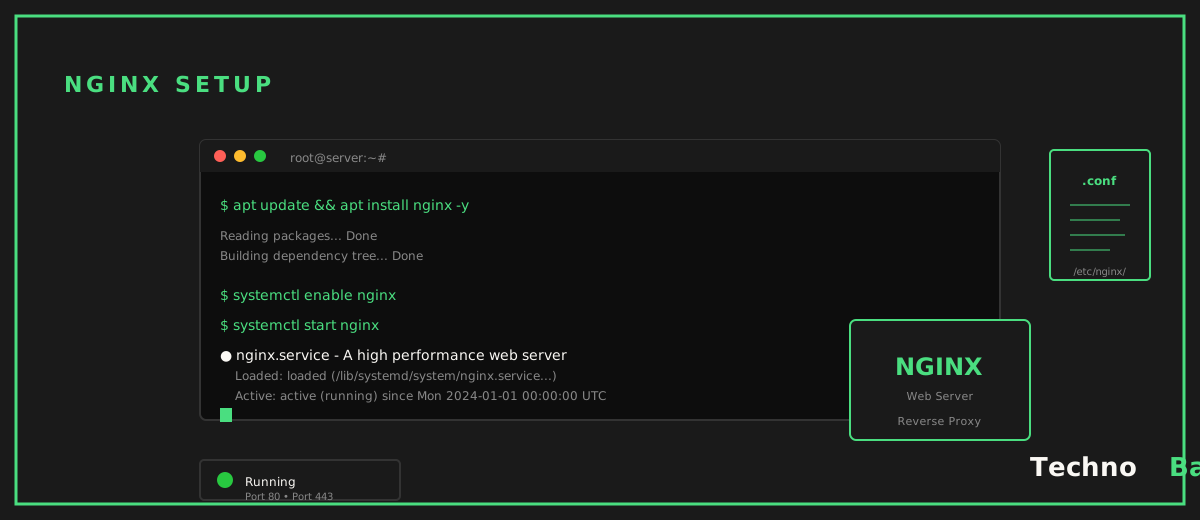
Okay so this is something I keep running into: people want to run their own web server and assume the hard part is the install. It isn’t. The first time I served a page off my own Nginx box I sat there refreshing it maybe forty times, just to watch the access log tick over. Something about knowing every byte the visitor got passed through a config file you typed yourself. Anyway. This walks you from a bare Ubuntu VPS to a real site on your own domain, locked down with free HTTPS. Tested on Ubuntu 24.04 on a small Mumbai droplet, and I’ll point out the India-specific snags, DNS propagation on Jio and the certificate renewals mostly, when we hit them.
what you need first
Three things, give or take. A VPS with a public IP, ideally sitting in Mumbai or Bangalore so your Indian visitors get 30 to 60 ms latency rather than the 250 ms you’d eat from a default US region. Think of it like the difference between a local train and changing three lines across the city, the distance is the cost. No VPS yet? My VPS beginner guide covers picking and spinning one up for somewhere around ₹500 to ₹700 a month, GST included. You also need a domain. A .in or .com runs roughly ₹600 to ₹1,000 a year, and my domain name guide covers where to buy one without walking into a renewal-price trap. And SSH access as a sudo user. Not root.
Nginx over Apache, why? Both work, honestly. But Nginx eats less RAM, which actually matters on a 1 GB server, the config reads cleaner once it clicks for you, and it’s what turns up in most Indian startup stacks and DevOps job posts in 2026. Learn it once and reverse proxies, load balancers, Kubernetes ingress, they all stop looking like alien tech.
step 1: install nginx, open the firewall
The version in Ubuntu’s repo is fine for nearly everyone. SSH in, run this:
sudo apt update
sudo apt install nginx -y
sudo ufw allow 'Nginx Full'
sudo systemctl status nginx
That ufw rule opens ports 80 and 443. If status comes back active (running), drop your server’s IP into a browser and you should land on the “Welcome to nginx!” page. Nothing showing up? Granted, the obvious culprit is Nginx, but check whether your provider runs its own cloud firewall sitting in front of port 80. AWS Lightsail and Oracle both do this out of the box, so you have to open the port in their web console too. Not just in ufw. It’s the toll booth you forgot was on the highway.
step 2: point your domain at the server
Over in your registrar’s DNS panel, make two records. An A record for @ pointing at your server IP, and an A record for www pointing at the same IP. A TTL of 300 seconds is fine.
Propagation is usually quick. Granted, Indian ISP resolvers can be lazy about it, and Jio’s in particular sometimes hold an old record well past what the TTL claims. Check from the server itself, which sidesteps your ISP entirely:
dig +short example.in @1.1.1.1
dig +short www.example.in @1.1.1.1
Once both spit back your server IP, you’re set. If your phone’s still showing the old page on Jio, don’t sit there waiting, just point the phone at 1.1.1.1 in Private DNS settings.
step 3: create a server block
Nginx calls virtual hosts “server blocks”. One machine can host a pile of sites, each with its own block. Start with a web root and a test page:
sudo mkdir -p /var/www/example.in/html
sudo chown -R $USER:$USER /var/www/example.in/html
echo '<h1>Namaste from my own server</h1>' > /var/www/example.in/html/index.html
Now the config file, at /etc/nginx/sites-available/example.in, with this inside:
server {
    listen 80;
    listen [::]:80;
    server_name example.in www.example.in;
    root /var/www/example.in/html;
    index index.html;

    location / {
        try_files $uri $uri/ =404;
    }
}
Enable it, test the syntax, reload:
sudo ln -s /etc/nginx/sites-available/example.in /etc/nginx/sites-enabled/
sudo nginx -t
sudo systemctl reload nginx
Make nginx -t a reflex. It catches the typo before it takes your site down, and reload applies the change without dropping anyone who’s mid-connection, a bit like switching the green-wave signal timing without stopping traffic. Visit your domain and the Namaste page should be there.
step 4: free https with let’s encrypt
Plain HTTP in 2026 buys you browser warnings, a worse search ranking, and on a few Indian mobile networks, content injected into your pages. Certbot sorts all of that in about two minutes for ₹0:
sudo apt install certbot python3-certbot-nginx -y
sudo certbot --nginx -d example.in -d www.example.in
Certbot edits your server block, installs the certificate, and wires up an HTTP-to-HTTPS redirect when you pick that option. Pick it. Certificates last 90 days and a systemd timer renews them on its own. Confirm the timer’s actually alive:
sudo systemctl list-timers | grep certbot
sudo certbot renew --dry-run
If the dry run passes you can basically forget certificates exist. This is the thing shared hosting companies bill ₹1,500 a year for. Once the redirect’s in place, load your site once over plain http:// and check the browser ends up on https:// with the padlock. Granted, it’s a thirty-second check you’ll be tempted to skip, but it catches the rare case where Certbot edited the wrong server block on a multi-site box.
step 5: defaults worth adding
The stock config does work. A handful of extra lines make it noticeably better on Indian mobile connections, though, where every kilobyte and every round trip is a cost you pay. Inside your server block (the HTTPS one Certbot built), add:
gzip on;
gzip_types text/css application/javascript application/json image/svg+xml;
gzip_min_length 1024;

location ~* \.(jpg|jpeg|png|webp|svg|css|js|woff2)$ {
    expires 30d;
    add_header Cache-Control "public";
}

server_tokens off;
Gzip shaves text payloads by 60 to 80 percent. The expires block lets a returning visitor pull assets from cache instead of re-downloading them over metered Jio data. And server_tokens off stops Nginx broadcasting its exact version to every scanner crawling the internet. Run sudo nginx -t and reload after each change.
One habit to build early: actually watch what Nginx is doing. The command sudo tail -f /var/log/nginx/access.log streams requests live, and inside a day you’ll catch bots poking at /wp-admin and /.env on a site that has neither. That’s just background radiation on the public internet, the equivalent of people rattling every door handle on the street, and seeing it firsthand is what makes the hardening steps feel worth doing rather than paranoid. If one IP gets genuinely obnoxious, a single deny 198.51.100.7; line inside the server block shuts it up on the spot.
where to go next: reverse-proxying an app
Static files are step one. The actual payoff is parking Nginx in front of a Node, Python or Go app running on a local port. The location block looks like this:
location /api/ {
    proxy_pass http://127.0.0.1:3000;
    proxy_set_header Host $host;
    proxy_set_header X-Real-IP $remote_addr;
    proxy_set_header X-Forwarded-Proto $scheme;
}
Your app never touches the internet directly. Nginx takes the TLS, the slow clients, the logging, like a traffic cop at the junction so the app doesn’t have to deal with the chaos. Same pattern runs my self-hosted automation stack, which I go through in the n8n self-hosting guide. And before you put anything you care about behind it, work through the Ubuntu server security checklist, because a web server is the single most-attacked thing you’ll ever run.
common mistakes
- Editing sites-enabled directly. Edit in sites-available and symlink. The enabled directory is just pointers.
- Forgetting the cloud firewall. ufw says open, the provider console says closed, and you spend an hour debugging the wrong layer.
- Running certbot before DNS resolves. Validation fails, and repeated failures walk you straight into Let’s Encrypt rate limits. Confirm with dig first.
- restart instead of reload. systemctl reload nginx is zero-downtime. restart drops live connections for no reason.
- chmod 777 on the web root. Don’t. Files 644, directories 755, owned by your user, read by Nginx.
FAQ
Can I host multiple websites on one ₹600 VPS?
Yes, that’s the entire point of server blocks. One block per domain, each with its own root directory and its own certificate. A 1 GB server will happily serve five or six static sites. RAM only becomes the ceiling once each site wants its own database or app process.
Do I still need Cloudflare in front of Nginx?
Need? No. Their free tier does add DDoS absorption and caching at Indian edge locations, which helps if you take traffic spikes. For a personal site though, plain Nginx with the gzip and caching config above is honestly fast enough out of Mumbai.
How do I host WordPress on this setup?
Add PHP-FPM and MySQL, then a server block that hands .php requests off to the FPM socket. It runs fine on 2 GB of RAM. Granted, weigh the effort honestly against the managed options in my Indian web hosting roundup before you commit to it.
Where are the logs when something breaks?
/var/log/nginx/access.log and /var/log/nginx/error.log. The error log answers ninety percent of the “why is it 404 or 502” questions on its own. Tail it live with sudo tail -f /var/log/nginx/error.log while you reproduce the problem.
Join the discussion