
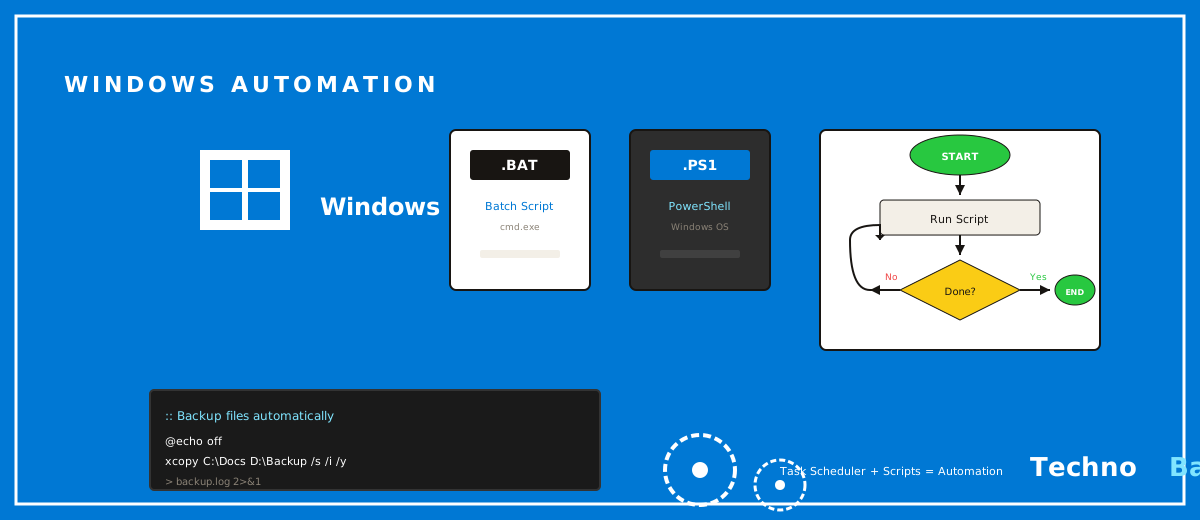
Two years. That’s how long I spent every Sunday doing the same twenty minutes of busywork: emptying my Downloads folder, dragging photos onto an external drive, deleting old screen recordings. Then one evening, stuck on laptop battery during a Patna load-shedding stretch, I got fed up and wrote a 12-line PowerShell script. It’s done that Sunday chore ever since. Here’s the part that still annoys me: Windows had everything I needed sitting right there the whole time. Cost to set up? ₹0. No paid apps, no subscription with a free trial that quietly renews, just PowerShell and the Task Scheduler that’s been parked in your Start menu since the day you bought the machine.
why powershell beats clicking around
First, kill the assumption that PowerShell is just the old black Command Prompt wearing a new coat. It isn’t. It’s a real scripting language baked into Windows 10 and 11, and it reaches pretty much everything on your machine, files, processes, network settings, installed apps, even the registry. The mental shift is the easy part. Anything you do twice by hand, you describe once in a script. After that the computer handles it perfectly, every single time, at 2 AM if that’s when you want it, whether or not you’ve remembered to.
For Indian users there’s an extra angle that the Western tutorials just don’t get. A lot of us are on Jio or Airtel plans with FUP limits on the cheaper tiers, and our machines have to live through sudden shutdowns the second the inverter battery taps out. Scripts can push heavy downloads to late night when the network’s basically free, retry a backup that died halfway, and log the lot so you actually know what ran. I treat my Windows desktop the way I treat the old laptop I turned into a home server: it should be working for me even when I’m nowhere near it.
the tasks i actually automate
Before you write a single line, work out what’s even worth automating. People skip this and end up scripting things they do once a year. My rule is blunt: if a task eats more than five minutes and comes back every week, it goes into a script. Here’s my current lineup.
- Move files older than 30 days out of Downloads and into an Archive folder on my D: drive
- Mirror my Documents folder to an external hard disk every night with Robocopy
- Empty the Recycle Bin and clear Windows temp folders every Saturday
- Restart my Jio router through its API when the connection drops (the thing hangs roughly once a fortnight)
- Export a list of installed programs to a text file, which makes a clean Windows reinstall painless
None of it is glamorous. But together it claws back an hour or two a month, and, funny enough, the bigger win is emotional. It quietly deletes that nagging “I really should back up my files” guilt most of us drag around like an unwashed dish in the sink.
your first script: cleaning the downloads folder
Open Notepad. Or honestly, just grab the free VS Code instead, your future self will thank you. Save this as clean-downloads.ps1 inside a folder like C:\Scripts. That .ps1 extension is what tells Windows it’s a PowerShell script.
$cutoff = (Get-Date).AddDays(-30)
$archive = "D:\Archive\Downloads"
if (-not (Test-Path $archive)) { New-Item -ItemType Directory -Path $archive }

Get-ChildItem "$env:USERPROFILE\Downloads" -File |
  Where-Object { $_.LastWriteTime -lt $cutoff } |
  Move-Item -Destination $archive -Force

Write-Output "Cleanup finished at $(Get-Date)"
Read it line by line, it’s not as scary as it looks. We work out the date 30 days ago, make sure the archive folder exists, then grab every file in Downloads, keep only the ones last touched before that cutoff, and move them across. To test it: open PowerShell, go to C:\Scripts, run .\clean-downloads.ps1. If Windows throws an execution policy error at you, don’t panic and don’t go disabling everything. Run this once in an administrator PowerShell window:
Set-ExecutionPolicy -ExecutionPolicy RemoteSigned -Scope CurrentUserRemoteSigned just means the scripts you wrote yourself run freely, while anything pulled off the internet needs a signature first. That’s a sensible middle ground for a home machine, and frankly it’s where you should leave it.
nightly backups with robocopy
Robocopy is the most underrated tool in Windows, and I’ll die on that hill. It’s shipped with every version since Vista, and it’s miles smarter than dragging files across with your mouse: it copies only what changed, retries when something fails, and writes a log. My whole backup “system” is one line in a script I called backup-docs.ps1.
robocopy "C:\Users\anurag\Documents" "E:\Backup\Documents" /MIR /R:2 /W:5 /LOG+:"E:\Backup\backup-log.txt"The /MIR switch mirrors the source, so a file you delete on C: also vanishes on E:. Keeps the backup tidy. But read that twice before you run it, because point /MIR at the wrong folder and it’ll cheerfully wipe it clean for you. The /R:2 and /W:5 bits tell it to retry twice with a five second wait, which matters when your external drive needs a second to spin up, like waiting for the geyser to warm before the water runs hot. A decent 1 TB external drive runs about ₹4,500 in India right now. Cheap insurance for years of family photos.
Tip: always do a dry run first by adding the /L switch. Robocopy will list what it would copy or delete without touching anything.
scheduling it all with task scheduler
A script you still have to run by hand is only half automated, and half-automated is just a reminder you’ll eventually ignore. Task Scheduler closes that loop. There’s a graphical app for it (search “Task Scheduler” in the Start menu), but I prefer registering tasks straight from PowerShell because it’s repeatable. Run this once as administrator:
$action = New-ScheduledTaskAction -Execute "powershell.exe" `
  -Argument "-NoProfile -ExecutionPolicy Bypass -File C:\Scripts\clean-downloads.ps1"
$trigger = New-ScheduledTaskTrigger -Daily -At 11:30pm
$settings = New-ScheduledTaskSettingsSet -StartWhenAvailable
Register-ScheduledTask -TaskName "CleanDownloads" -Action $action `
  -Trigger $trigger -Settings $settings
Three things matter in there. The -NoProfile flag gets the script moving faster. The -StartWhenAvailable setting is the one most tutorials breeze right past, and it’s exactly the one Indian users can’t live without: if your PC happened to be dead at 11:30 PM because the power was out and the inverter was rationed to the fans, the task simply runs the next time the machine boots instead of silently writing off the day. And running the registration as administrator lets the task fire even when you’re not logged in, if you pick that option.
picking the right trigger
Daily and weekly triggers are the obvious ones. But Task Scheduler will also fire on events: at logon, when the machine goes idle, when a specific entry shows up in the Event Log, or when you plug in a USB drive. My backup task fires at 1 AM, when the Airtel fibre line is sitting idle and nobody’s halfway through a Hotstar episode on the same network.
surviving power cuts and sleep mode
Here’s where automation in India parts ways with the tutorials written for the West. Two settings decide whether your scheduled tasks ever actually run.
First one, wake timers. If your desktop drops off to sleep at night, open the task’s properties in Task Scheduler, head to Conditions, and tick “Wake the computer to run this task”. Then pair that with allowing wake timers under Power Options, one without the other does nothing. Second one, missed runs. Always switch on “Run task as soon as possible after a scheduled start is missed”, which is what -StartWhenAvailable sets for you. Between planned outages and the odd MCB trip, my desktop misses two or three scheduled windows a month, and this single checkbox is the difference between everything getting done and nothing getting done.
Laptops have it easier since the battery carries them through a cut. Still, check the Conditions tab there too, because by default a task won’t even start on battery power. Untick that if your backup drive lives permanently plugged in. And add logging to every script with Start-Transcript so you can actually confirm what ran, not just hope it did. I keep my transcripts in C:\Scripts\logs, and a tiny monthly task sweeps out anything older than 90 days, like clearing the fridge of leftovers before they turn.
what to automate first: a cheat sheet
| Task | Tool | Schedule | Time saved/month |
|---|---|---|---|
| Downloads cleanup | PowerShell script | Daily, 11:30 PM | ~30 min |
| Documents backup | Robocopy /MIR | Daily, 1 AM | ~45 min |
| Temp file purge | PowerShell script | Weekly, Saturday | ~15 min |
| Installed apps list | winget export | Monthly | Hours, when reinstalling |
| Router restart on hang | PowerShell + router API | On network-loss event | Sanity |
Once these stop feeling like a chore, the next rung up is a proper automation server. I run self-hosted n8n for anything that touches web services and APIs, and the same way of thinking carries straight over to home automation for lights and appliances. PowerShell, funny enough, is the gateway drug for all of it.
common mistakes
- Testing /MIR on real data. Rehearse Robocopy mirror jobs with /L first, ideally on a dummy folder. No exceptions.
- Relative paths in scripts. Task Scheduler runs your script from C:\Windows\System32, not your folder. Use full paths everywhere, this one bites everybody once.
- No logging. A task that’s been failing silently for six months is worse than no task at all. Start-Transcript is literally one line.
- Storing passwords in plain text. If a script needs credentials, use Windows Credential Manager or an exported secure string. Never a hard-coded password sitting there in the open.
- Forgetting the battery condition. On laptops, that default “stop if the computer switches to battery power” setting will kill a long backup mid-run during a power cut.
faq
Is PowerShell safe to learn, or can I break Windows?
Reading data is always safe, commands that start with Get- never change a thing. The risk only shows up with Remove-Item, Set- and Move- commands. Test those on a junk folder first, and please, don’t run scripts copied off some random forum as administrator without reading them line by line. Give it that basic respect and PowerShell is no more dangerous than File Explorer.
Do I need Windows 11 Pro for Task Scheduler?
No. Task Scheduler and PowerShell ship with the Home editions too, including the Windows 11 Home that comes pre-loaded on most laptops sold in India. Pro only earns its keep for things like Group Policy and Remote Desktop hosting. For personal automation, it does nothing extra.
My scheduled task shows “completed” but nothing happened. Why?
Nine times out of ten, the task ran powershell.exe just fine but the script inside it fell over, usually a relative path or a drive letter that wasn’t there. Check the Last Run Result column, bolt Start-Transcript logging onto the script, and confirm the external drive actually mounts with the same letter every time. You can pin drive letters in Disk Management so they stop wandering.
Should I use batch files (.bat) instead of PowerShell?
Batch files still work, and they’re fine for a quick one-liner. But PowerShell runs circles around them on dates, file filtering, error handling and APIs. Both are free and pre-installed, so honestly, I can’t think of a single reason to start a new project in batch in 2026.
Join the discussion